How to make a Valorant inventory card
Updated September 23, 2026
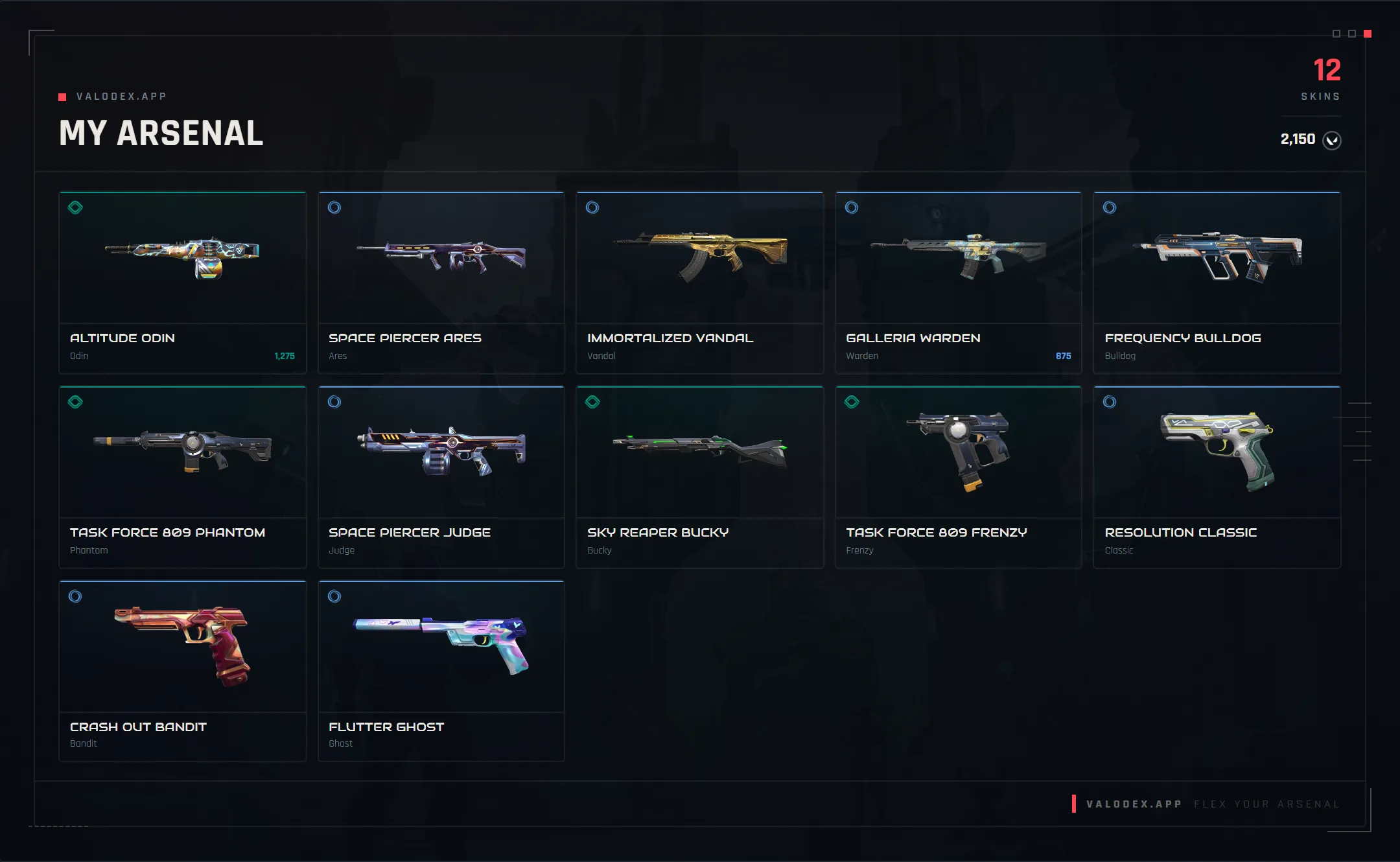
A Valorant inventory card is just one image that shows the skins you own, usually with your player card, rank and a few extras around them. In VALODEX you make one in five steps: get your skins in, pick a template, tweak the details, choose a size, then save it. Once your skins are in, the whole thing takes a couple of minutes, and you can swap templates whenever you want without losing anything.
Step 1 — Get your skins in
There are two ways to fill the grid, and you can mix them. The fast one is the Riot import: sign in on Riot's page, paste the URL it sends you to, and VALODEX pulls in your skins, player card, sprays, buddies, flex, level and rank. The other way is to just add skins yourself from the browser. That's the move if you only want a handful of favorites, or if you'd rather not sign in at all.
If you add skins by hand, pick the color you actually own. Each skin has a color option, and whatever you pick is what shows up on the card.
Step 2 — Pick a template
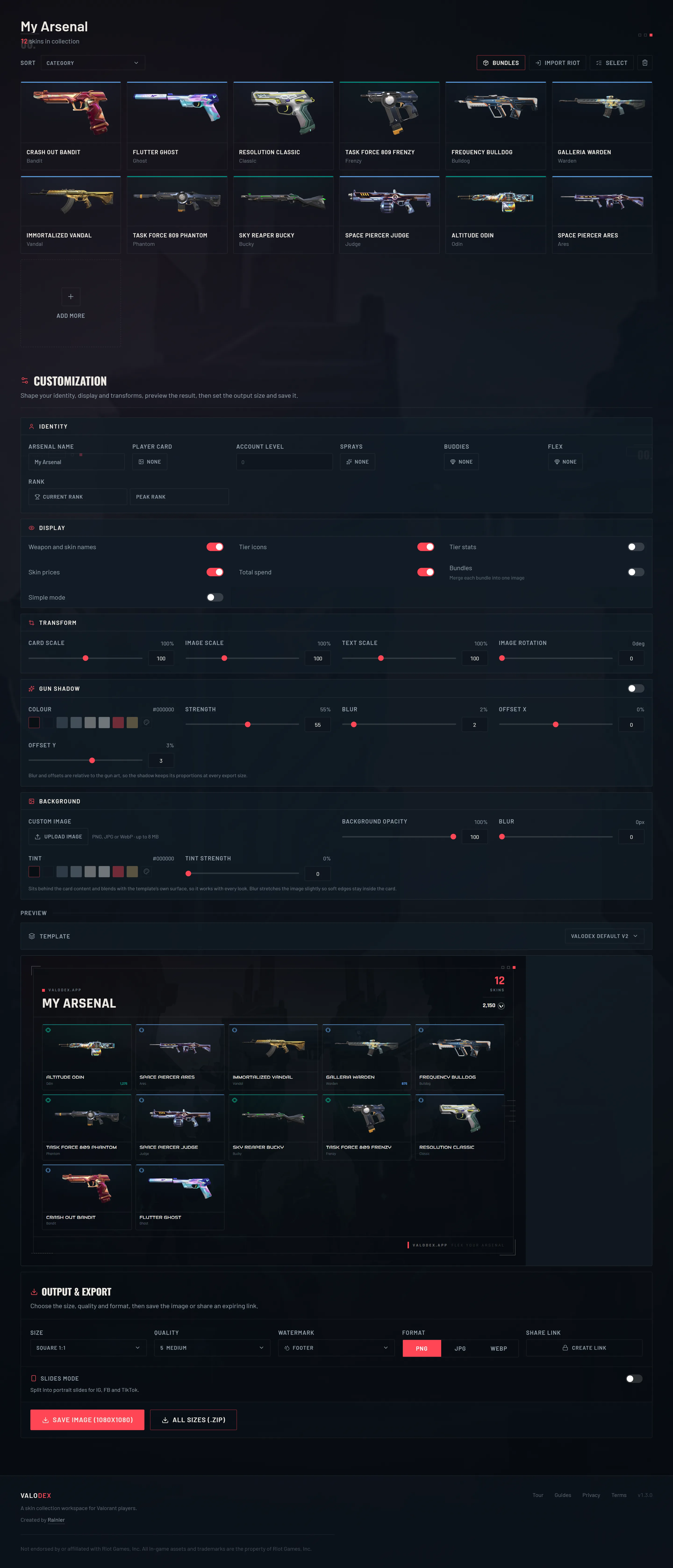
The template sets the layout, the fonts and the overall vibe. There are eleven, and they all use the same info, so switching never loses a skin, a rank or your name. Use the dropdown above the preview, or open the Templates page to compare them all at once.
They range from the two VALODEX defaults to dark and neon looks, a bright ivory one, a glassy one, a dense market-style grid, and a few softer themes. A couple of them hide features that don't fit their layout, like bundle merging, and that's on purpose.
Step 3 — Make it yours
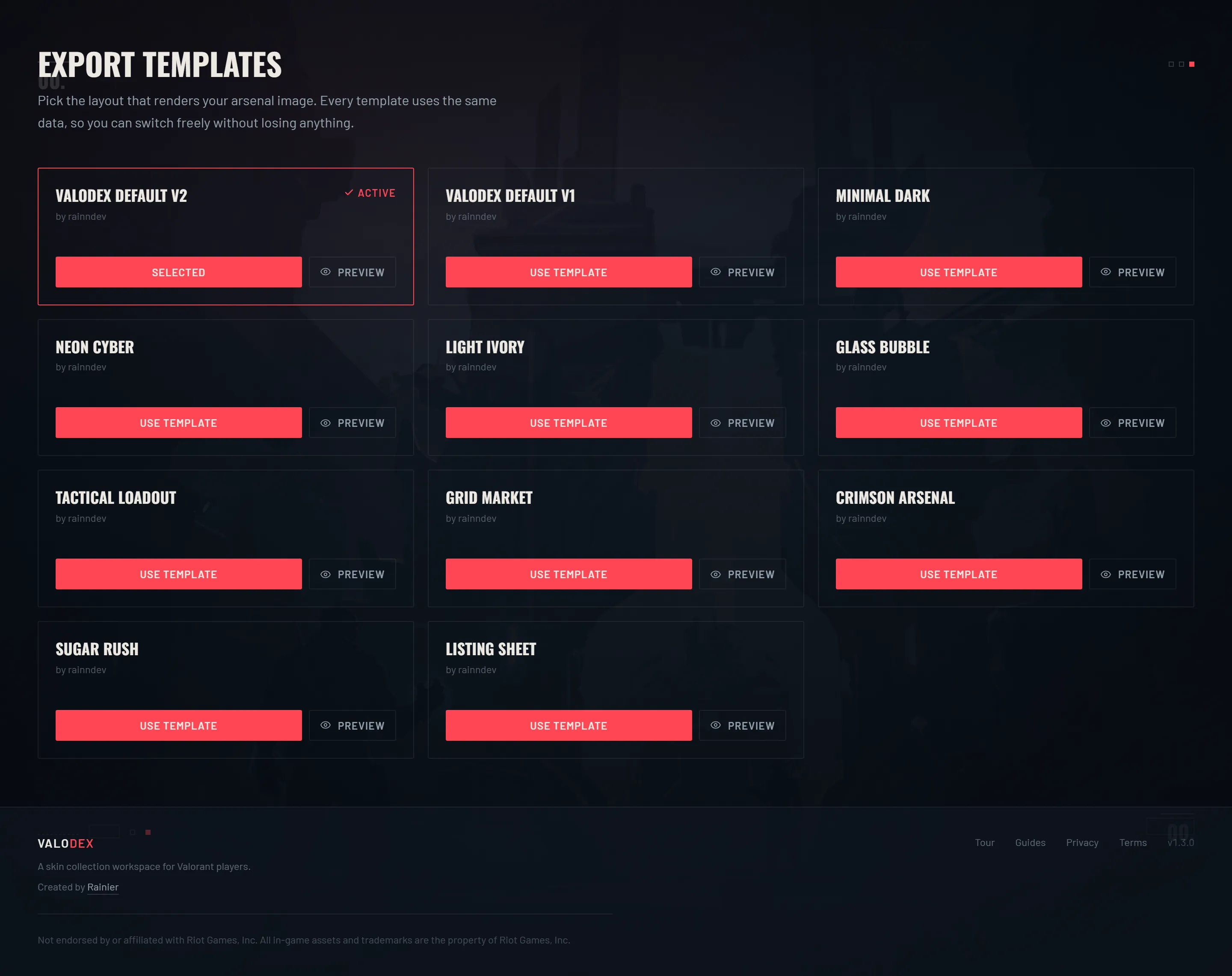
Everything in the customization panel feeds the card. Set your arsenal name, pick a player card, choose your current and peak rank, and add up to six sprays, four buddies and one flex item. You can show weapon names and tier icons, and you can merge skins from the same bundle into one tile so a big collection doesn't turn into a wall of near-identical rows.
The output panel is also where you upload your own background image and fade it in. If none of the built-in looks fit, that's the quickest way to make it yours without leaving the app.
Step 4 — Pick a size and quality
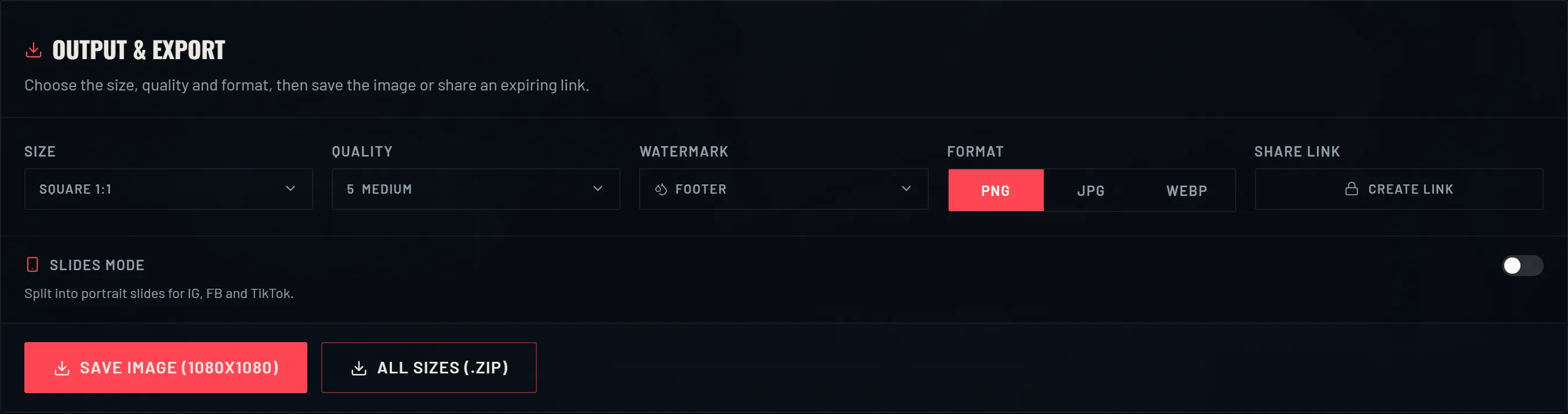
The sizes are presets, not guesses: square for a profile post, 9:16 for a story, 4:5 for a feed post, plus wider shapes for banners and wallpapers. Pick PNG if you want the sharpest image, or JPG and WEBP if you want a smaller file. JPG and WEBP are totally fine for chat and social.
Quality only matters for the compressed formats. Leave it high unless the file is too big, because skin art has a lot of detail and compresses badly.
- 01Pick the preset that matches where you're posting.
- 02Pick PNG for the best quality, or JPG/WEBP for a smaller file.
- 03Move the quality slider if you picked JPG or WEBP.
- 04Double-check the name and the skins you want on the card.
Step 5 — Save it
Save image exports the current preview at the size you picked. Want the same card in every size? All sizes (.zip) gives you one image per preset in a single download. There's also slides mode, which splits a long collection across a few 9:16 frames, which is what short-video apps want.
Quick tips
Sort your collection before you save. Sorting by category or tier makes the grid look planned instead of random. And if you've got a lot of skins from the same bundle, merging them keeps things tidy.
Match the size to where it's going. A square looks right in a feed and a bit bulky in a story. A 9:16 looks right in a story and cramped in a feed. Not sure? Save two sizes and compare.
If the card is about showing off, leave the tier icons on. They make it easy to see how high-end the collection is at a glance, which is kind of the whole point.
Frequently asked questions
- Do I need to import my Riot account?
- No. You can add skins by hand and build a card without signing in. The import just saves you from typing out your whole collection.
- Does switching templates lose my work?
- No. Every template uses the same collection, name, ranks and extras, so you can switch as much as you like.
- What size should I use for a Valorant collection card?
- 1080×1080 for a feed post, 9:16 for stories and short-video covers, and 4:5 when you want the image to take up more room in a feed. VALODEX has presets for all of them.
- Can I use my own background image?
- Yep. The output panel takes an upload and has an opacity slider, so you can set your own backdrop right there.
Keep reading
- How to view your Valorant skin collectionWhy the game has no full skin list, and how to see everything you own.
- How to share your Valorant collectionPNG, slides and zip exports, plus how the expiring share links work.
- How to organize your Valorant skin collectionSorting, bundle merging and display toggles that make a big collection readable.
- How much is your Valorant collection worth?How collection value is added up, and why the game never shows you a total.
- Valorant skin prices: what skins cost in VPWhat skins cost by tier, and why the price you paid can differ from the list.
- Valorant card sizes for social mediaThe right export size for every place you post a collection card.
Choosing a look? Compare every template side by side.