How to organize your Valorant skin collection
Updated September 25, 2026
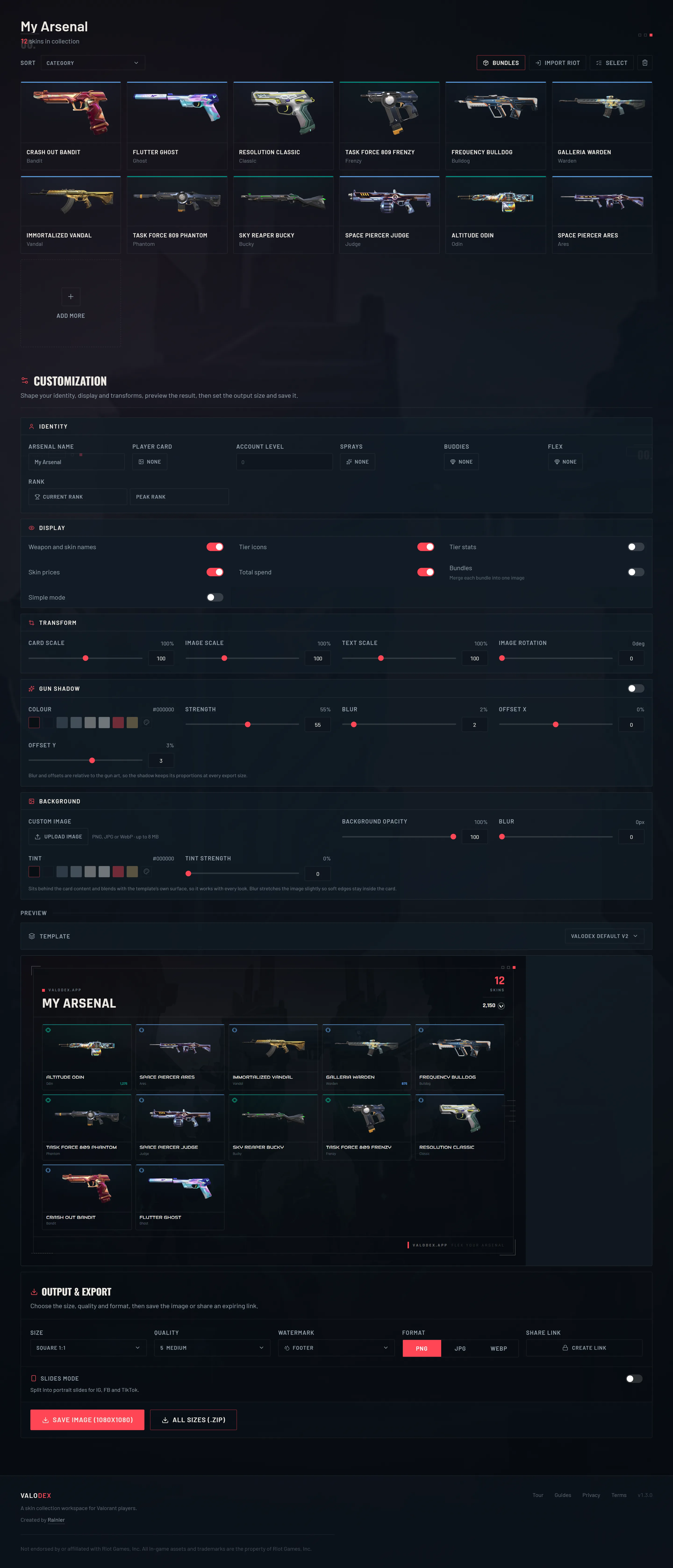
A large collection only looks good when it is arranged. VALODEX sorts your skins the way you want, folds complete bundles into a single tile, and lets you switch off the labels that turn a card into a wall of text. None of it changes what you own, only how the card reads.
Start with a sort
The sort you pick is the order the card and the slides use, so it does more than tidy the grid. Sorting by category keeps each weapon's skins together, which is the calmest look for a big collection. Sorting by tier groups the expensive skins and makes the value obvious at a glance.
Sorting by weapon is the tightest of the three, since every skin from the same gun sits in a run. Price sorts the collection from most to least expensive, and Added keeps the order you built it in, which is handy when you are still adding skins and want to see the newest ones last.
- 01Open your collection in valodex.app/create.
- 02Use the Sort dropdown above the grid.
- 03Pick category, tier, weapon, price or added.
- 04Watch the card preview reorder with the grid.
Fold whole bundles into one tile
If you own every skin in a bundle, VALODEX can replace all of those individual tiles with one bundle tile. That is the single biggest win for a crowded card: a fully owned bundle stops being six near-identical rows and becomes one recognisable piece of art.
Only complete bundles merge. If you own most of a bundle but not all of it, the individual skins stay separate, because a half-bundle tile would misrepresent what you have. Some templates opt out of bundle tiles entirely because their layout has no room for them, and the display toggle tells you when that is the case.
- 01Turn on the Bundles display toggle in the output panel.
- 02Complete any bundle you want merged by adding its missing skins.
- 03The bundle collapses into one tile with its own art and a count.
- 04Switch the toggle off to bring every individual skin back.
Turn off the clutter
Every toggle in the Display section adds or removes information from the card, and a big collection cannot carry all of it. Weapon and skin names make a small collection feel documented; on a hundred tiles they turn into noise.
Tier icons and tier stats are the opposite. They are small, they sit on the art, and they let someone read the quality of your collection without reading a single name. That is usually worth keeping on.
Skin prices and the collection total are the show-off toggles. Keep both on if the card is about the investment. Turn prices off and keep only the total if you want one clean number instead of a chip under every skin.
Use simple mode for very large collections
Simple mode strips the per-skin labels back to the art and keeps the layout calm when names and details would overlap. Reach for it once your collection is large enough that the card stops being readable at the size people will actually view it.
It is not a downgrade. On a big collection, less text per tile usually means the card looks deliberate rather than busy, and the skins themselves carry the card.
Save the tidy version
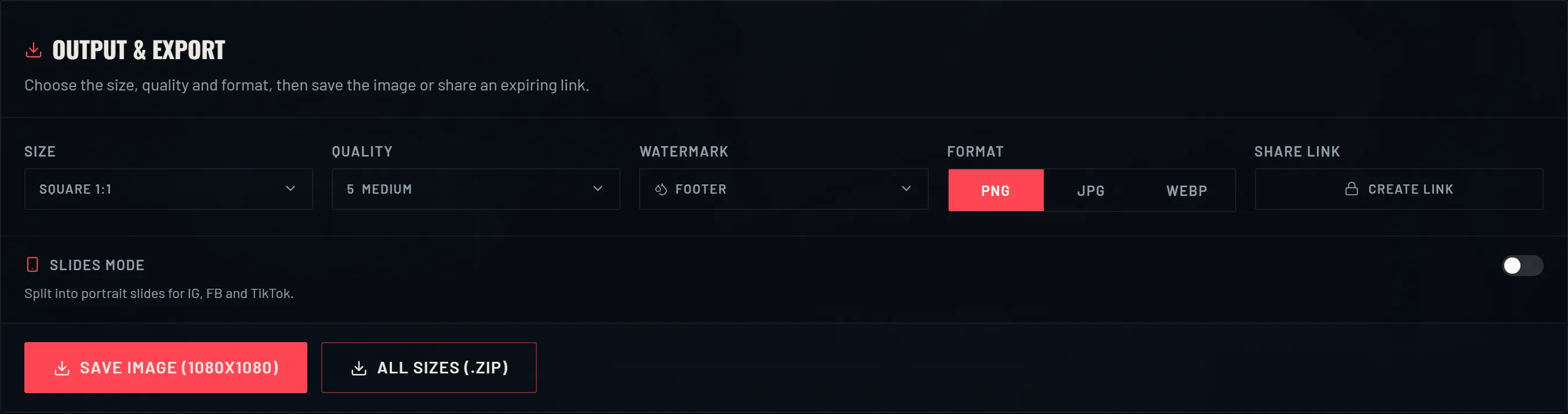
Whatever order and toggles you settle on are baked into the export, so what you arrange is what you save. If you use slides mode, each slide is a page of the same sorted list, which means sorting by category gives you slides that each hold a coherent run of skins instead of a random mix.
If you post the card somewhere people zoom in, check it at that size before you export. A layout that reads on a monitor can still be too dense on a phone, and that is the moment to merge a bundle or switch a toggle off.
Frequently asked questions
- Does sorting change my collection?
- No. Sorting only changes the order things are drawn in. You own exactly the same skins, and switching the sort back restores the previous order.
- Why won't my bundle merge into one tile?
- Bundle merging needs the whole bundle. If even one skin is missing, the pieces stay separate on purpose. Add the missing skins and the bundle collapses into a single tile.
- Can I show prices but not the total, or the other way round?
- Yes. Skin prices and Total spend are separate toggles, so you can show one, both or neither.
- Does merging a bundle remove skins from my collection?
- No. It is a display change. Every skin is still tracked, and turning the Bundles toggle off brings them all back.
- Do the slides respect my sort order?
- Yes. Slides are pages of the sorted list, so the order you choose above the grid is the order the slides are exported in.
Keep reading
- How to view your Valorant skin collectionWhy the game has no full skin list, and how to see everything you own.
- How to make a Valorant inventory cardThe whole walkthrough: import your skins, pick a layout, save a card you can post.
- How to share your Valorant collectionPNG, slides and zip exports, plus how the expiring share links work.
- How much is your Valorant collection worth?How collection value is added up, and why the game never shows you a total.
- Valorant skin prices: what skins cost in VPWhat skins cost by tier, and why the price you paid can differ from the list.
- Valorant card sizes for social mediaThe right export size for every place you post a collection card.
Choosing a look? Compare every template side by side.